Table of Contents
How to Watch YouTube Videos on Game Boy Advance?
Friends, there’s a new article on the site: EZ-Flash Air Review: Features, Limitations, and Comparison with Other Models.
ChisLink - a revolution in the GBA world.
Friends, AliExpress now has:
Cool metal labels for Game Boy Advance consoles. Important: the OMEGA series will no longer be produced — it is being replaced in the lineup by the EZ-Flash Air.
Cool eXtremeRate cases for GBA SP.
Friends, help me buy (if you have) various old stuff: Help me buy.
Friends, if you love the Game Boy Advance (SP, Micro, DS and DS Lite), sooner or later you may want to expand how you use this console. And nothing expands the possibilities of the Game Boy Advance quite like watching your favorite blogger on your favorite console ;)
Preparation
To watch any video on the Game Boy Advance, you will definitely need a flash cartridge and a computer! You will also need internet access to download the video.
The first step is to decide what exactly we want to watch. Find your favorite video on YouTube, for example, https://www.youtube.com/watch?v=PhSr6MJhNP8. Then replace “www.” in the address bar with “ss”. In our example it will look like this → https://ssyoutube.com/watch?v=PhSr6MJhNP8
You will see a window like this:
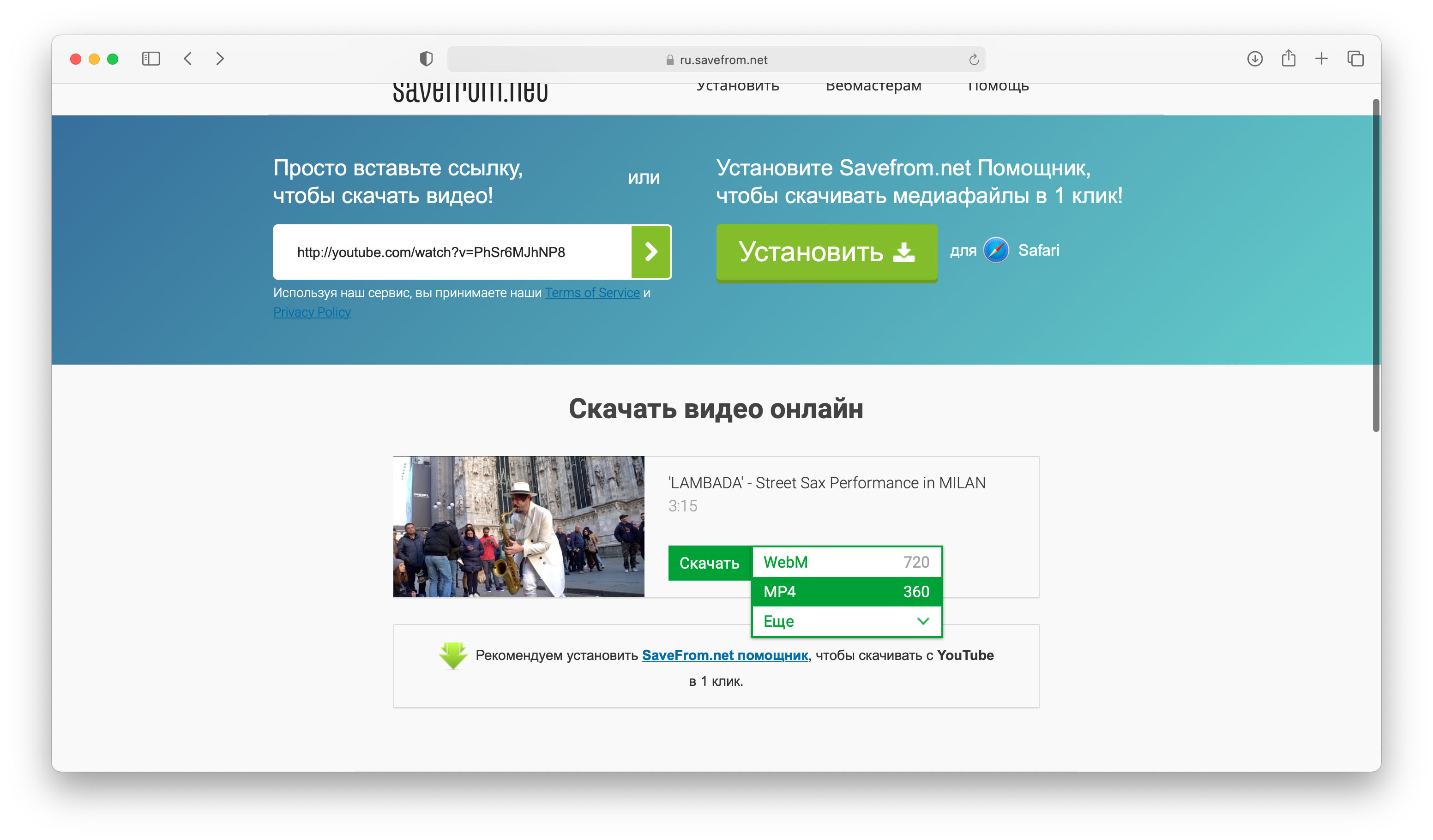
In the dropdown menu, select MP4 360. After that, the video will open in a separate window. Right-click on the video and download it.
You should end up with a file named videoplayback.mp4.
Next, go to: https://video.online-convert.com/convert-to-avi
You will see the following page:
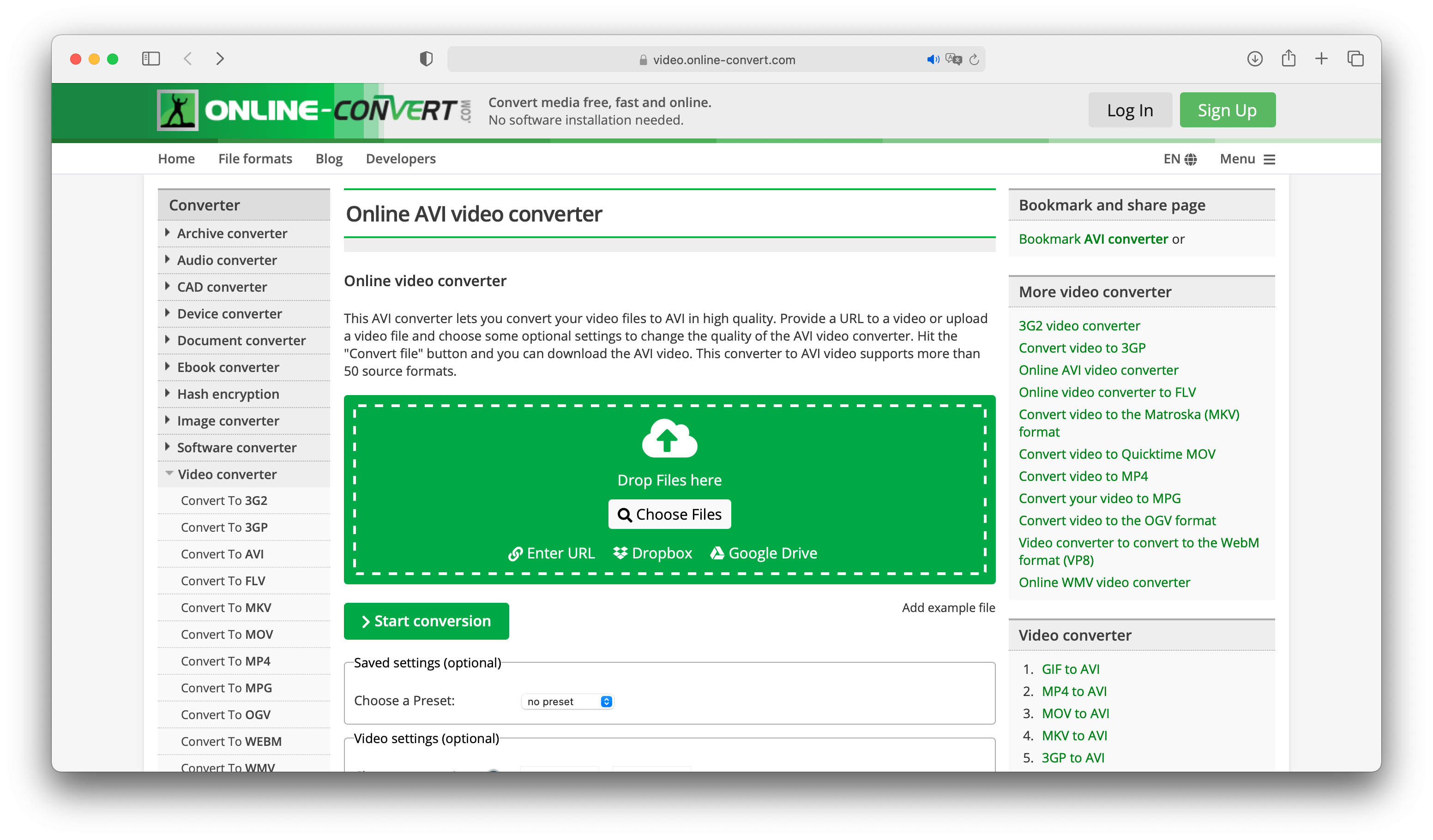
Drag the file you downloaded in the previous step into the green area, or click the Choose Files button and select the file manually.
Without changing any settings, click the green Start Conversion button.
Once the conversion is finished, click the green Download button.
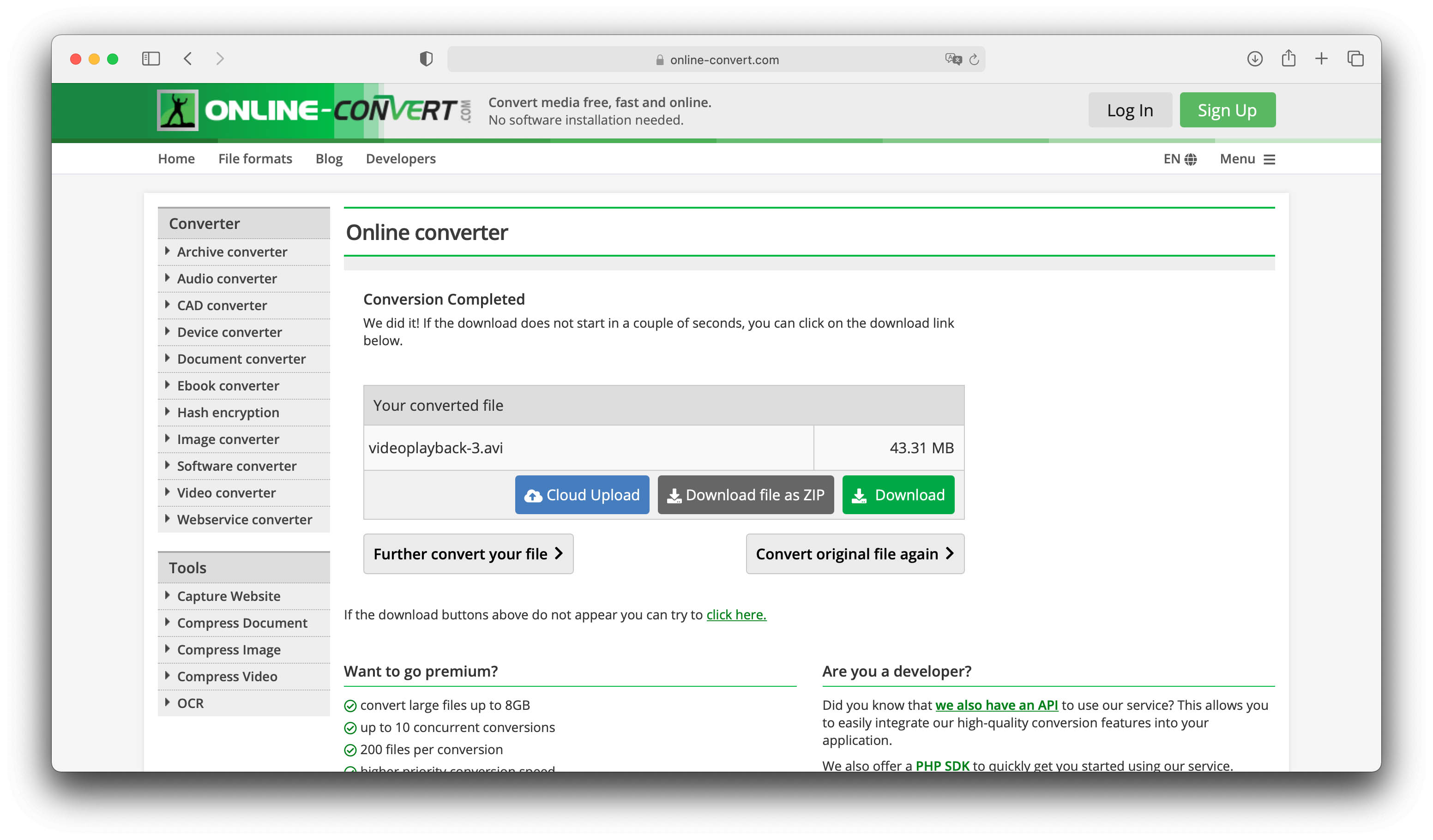
Now you have your video in AVI format.
Converting for Game Boy Advance
The second-to-last step is to convert the video into the “.gba” format so it can be played on the Game Boy Advance. For this, we will need the Meteo (1.4) program.
Open it:
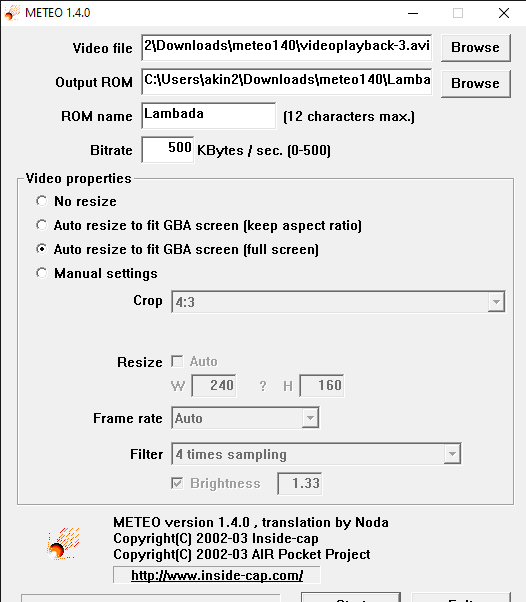
Settings:
Video file – select the file created in the previous step.
Output ROM – the name and location of the file that will be created after conversion.
ROM name – the name of the ROM that will be displayed on the console itself.
Bitrate – bitrate :)
No resize – do not change the aspect ratio of the video.
Auto Resize to fit GBA screen (keep aspect ratio) – scale the video to fit the GBA screen
while preserving the original aspect ratio.
Auto Resize to fit GBA screen (fullscreen) – scale the video to fully fill the GBA screen
(this is the option I always use).
The remaining options are manual settings and are mostly useful if you are converting your own custom content.
Click Start and you will get a converted video in “.gba” format. Copy it to your flash
cartridge and enjoy. It launches like a regular program. The B button restarts the
video, and the A button fast-forwards it.
You can download our test video to see the final result:
lambada.gba.zip.