Table of contents
N8 SUPERGAME PRO
Friends, there’s a new article on the site: EZ-Flash Air Review: Features, Limitations, and Comparison with Other Models.
ChisLink - a revolution in the GBA world.
Friends, AliExpress now has:
Cool metal labels for Game Boy Advance consoles. Important: the OMEGA series will no longer be produced — it is being replaced in the lineup by the EZ-Flash Air.
Cool eXtremeRate cases for GBA SP.
Friends, help me buy (if you have) various old stuff: Help me buy.
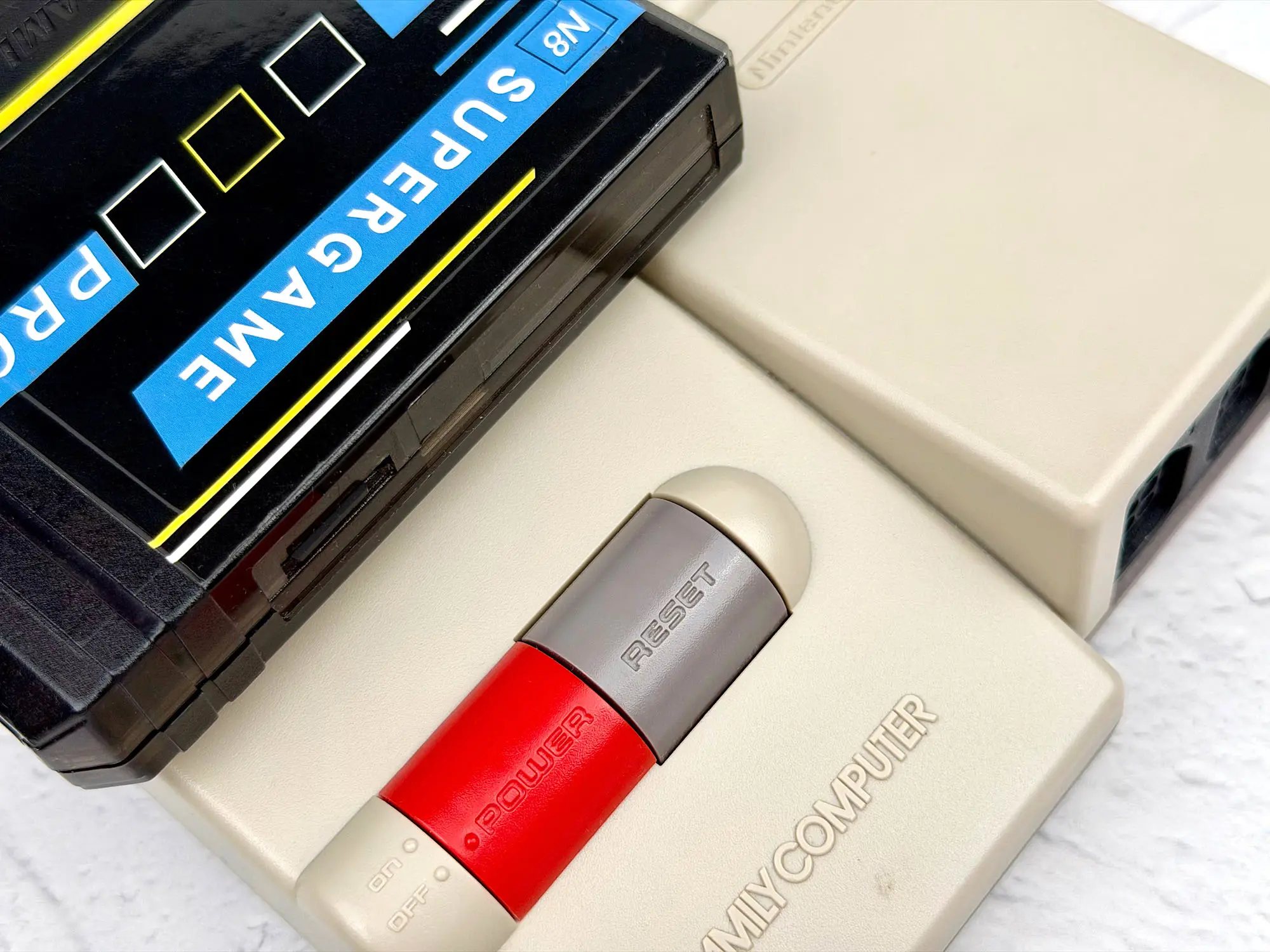
When people talk about NES flash cartridges, Krikzz products usually come up first. But the moment you see the price, the excitement tends to disappear fast. That’s when you start looking for something simpler — even if it means compromises. One of those “budget” options is the N8 Supergame Pro, a clone of the original EverDrive N8 that, by a funny coincidence, costs about three times less.
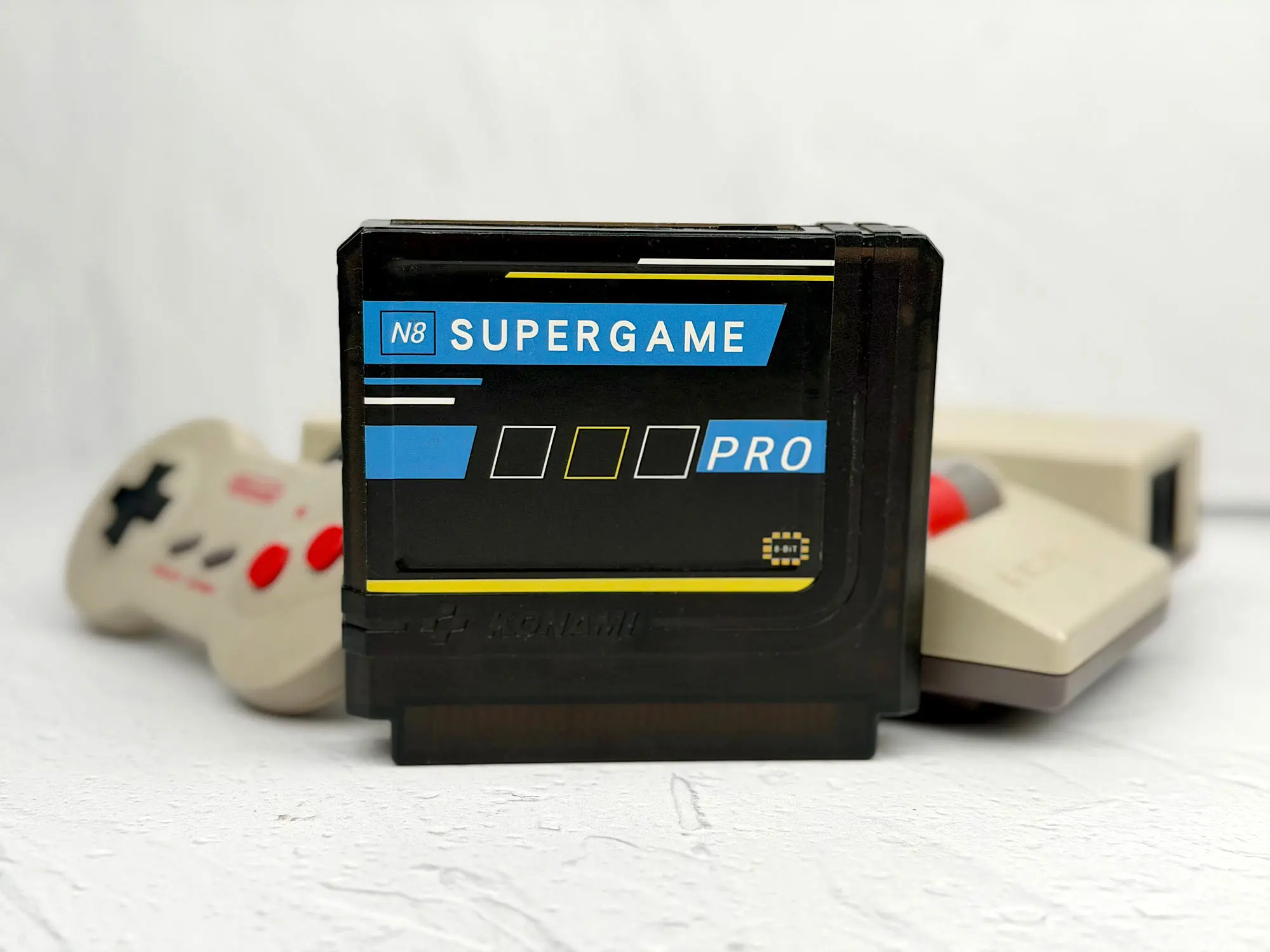
Thanks to Ruslan — this almost “rare” N8 Supergame Pro was found in his legendary wide pockets.
Where to buy?
Preparation
First, grab a microSD card from 2 to 32 GB.
Format the card to FAT32 with the default cluster size.
Now download the firmware. It’s recommended to grab two versions right away:
Try version 1.26 first. If it behaves unstable — slows down, freezes, or throws errors — roll back to 1.25.
Big thanks to Gameszzz, who posted both firmware versions on the emu-land.net forum.
Unzip nesos-v1.26_vtx.zip. Inside you’ll find the EDFC folder. Copy that folder to the root of the memory card — so you end up with something like: E:\EDFC.
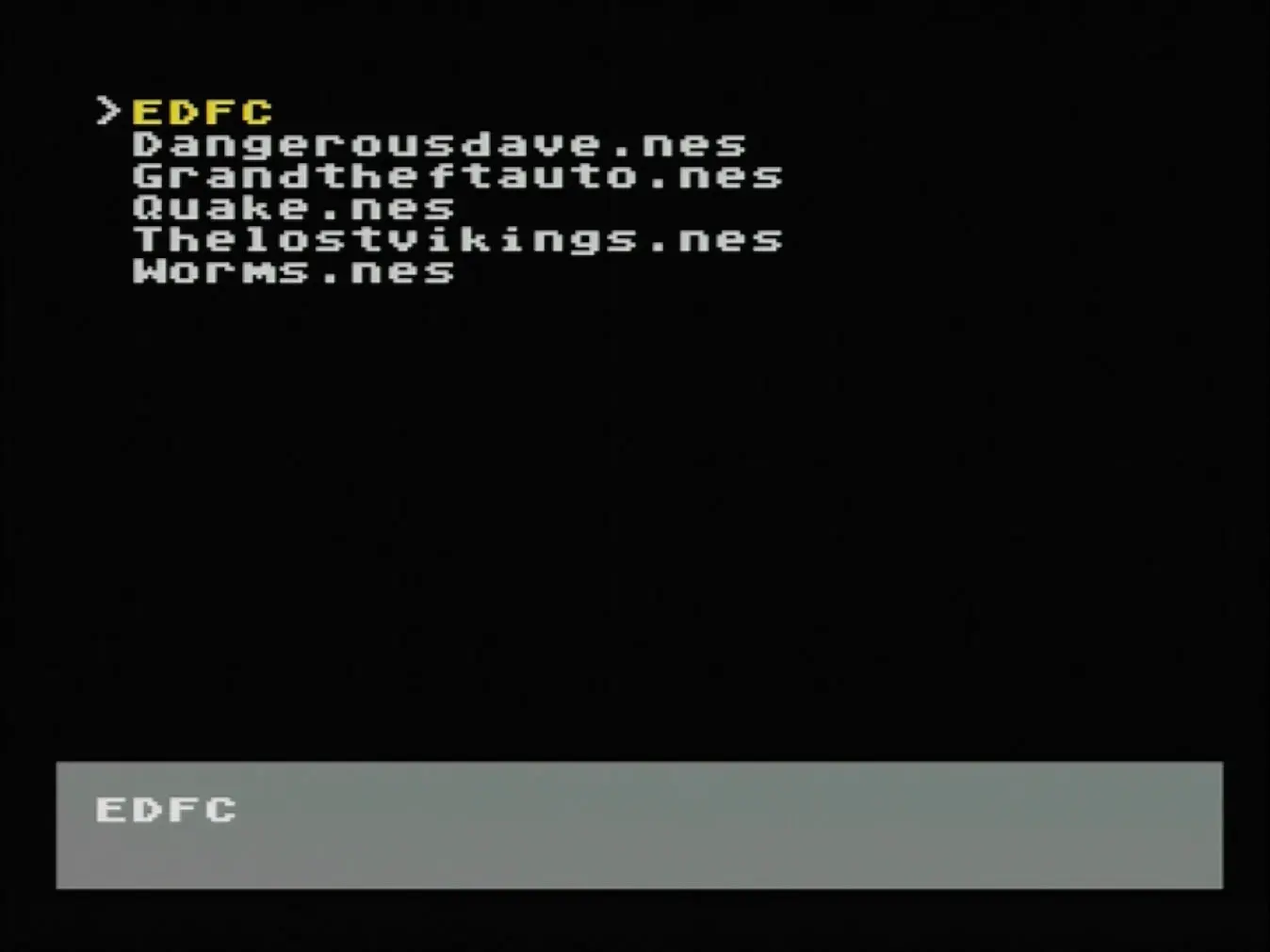
You can also copy game ROM files to the root or into any folders you like.
Archives (.zip, .7z) are not supported — games must be unpacked.
Possible startup errors
1. SD Initialization error
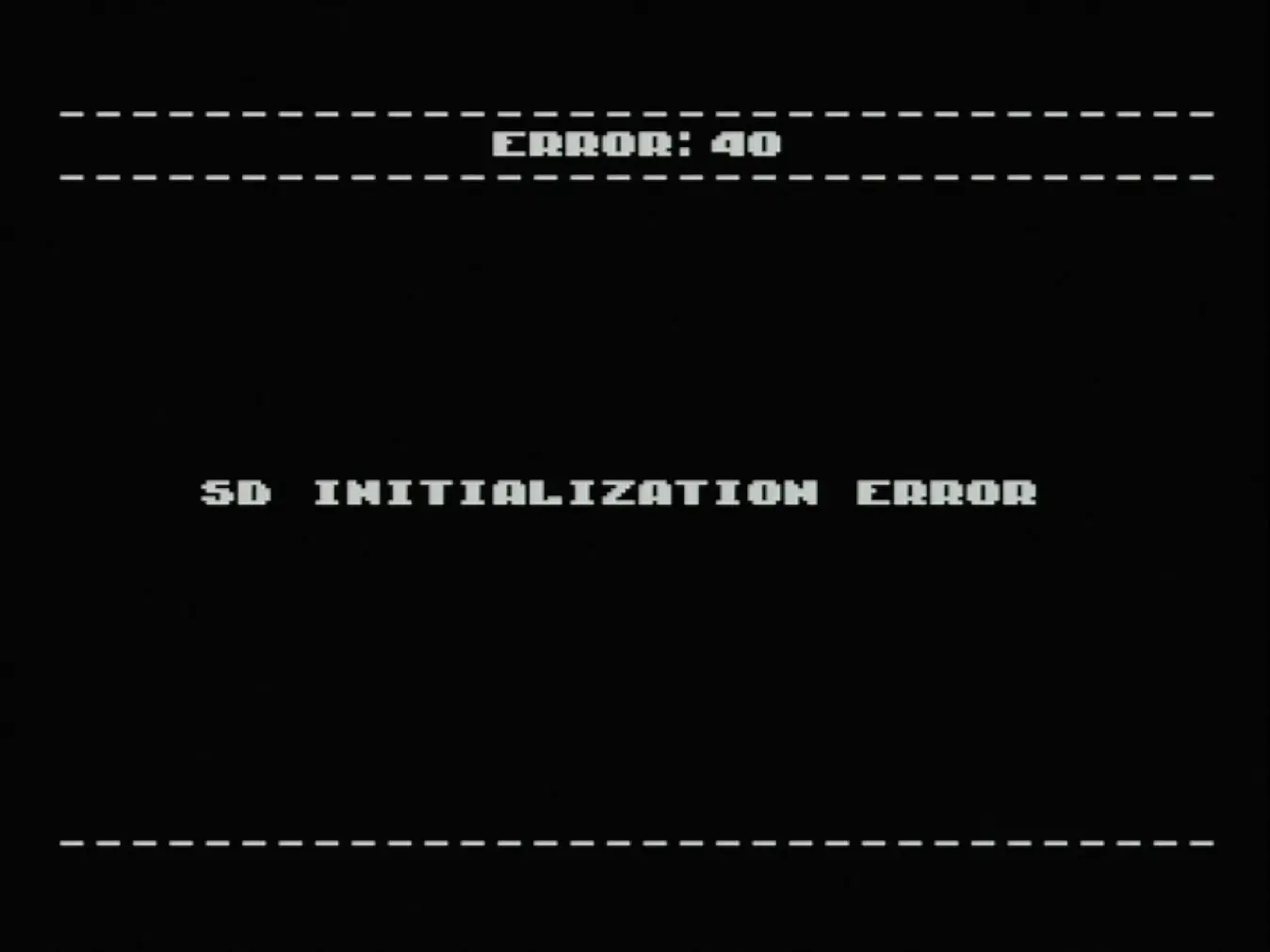
Most likely the card isn’t inserted, can’t be read, or is simply faulty. Try another card — preferably from a known brand.
2. System files not found.
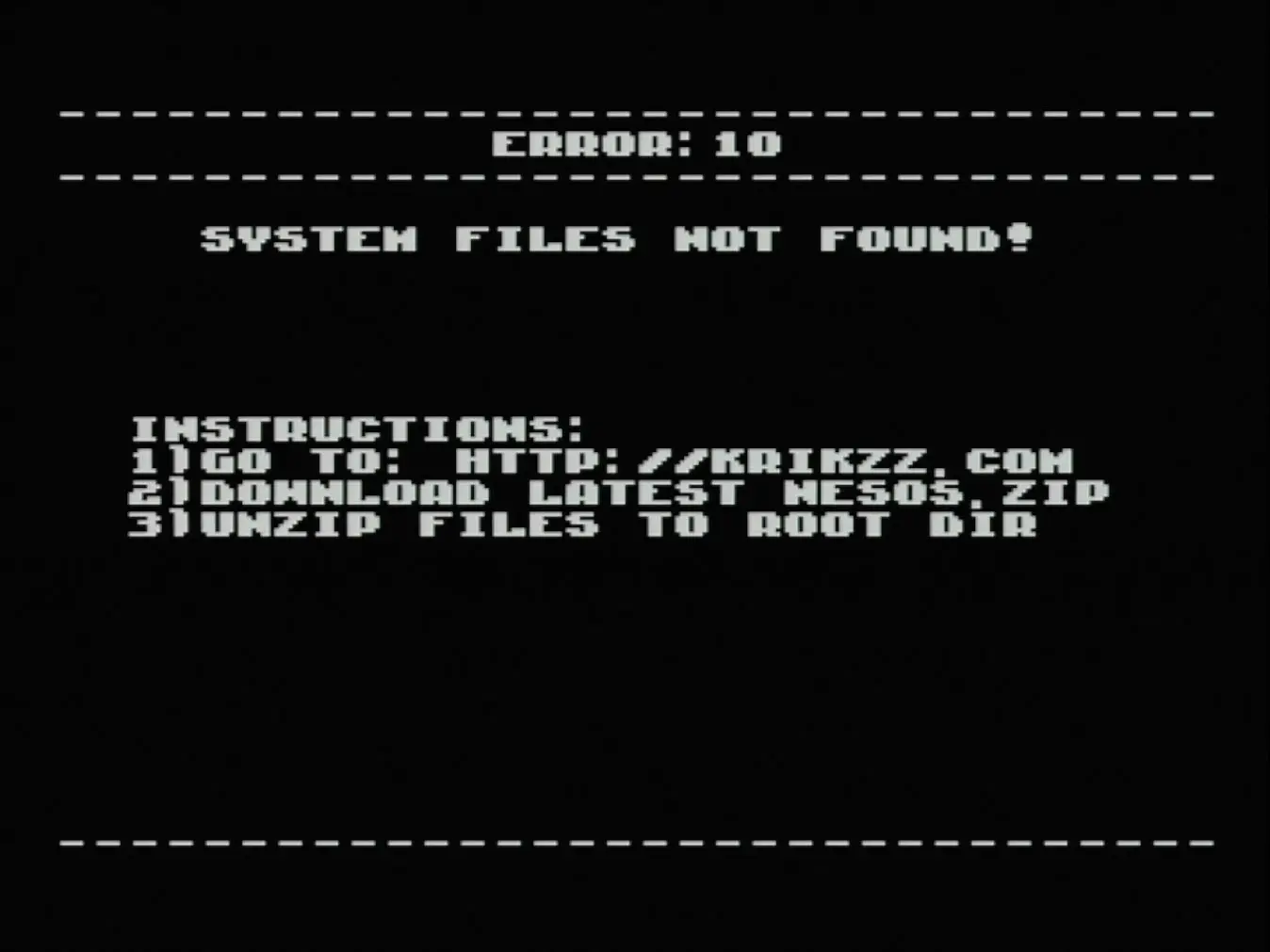
The cartridge can’t find the firmware files. Make sure the EDFC folder is copied to the root of the card, not inside another nested folder.
Usage
If everything went well, you’ll see the cartridge’s main menu:
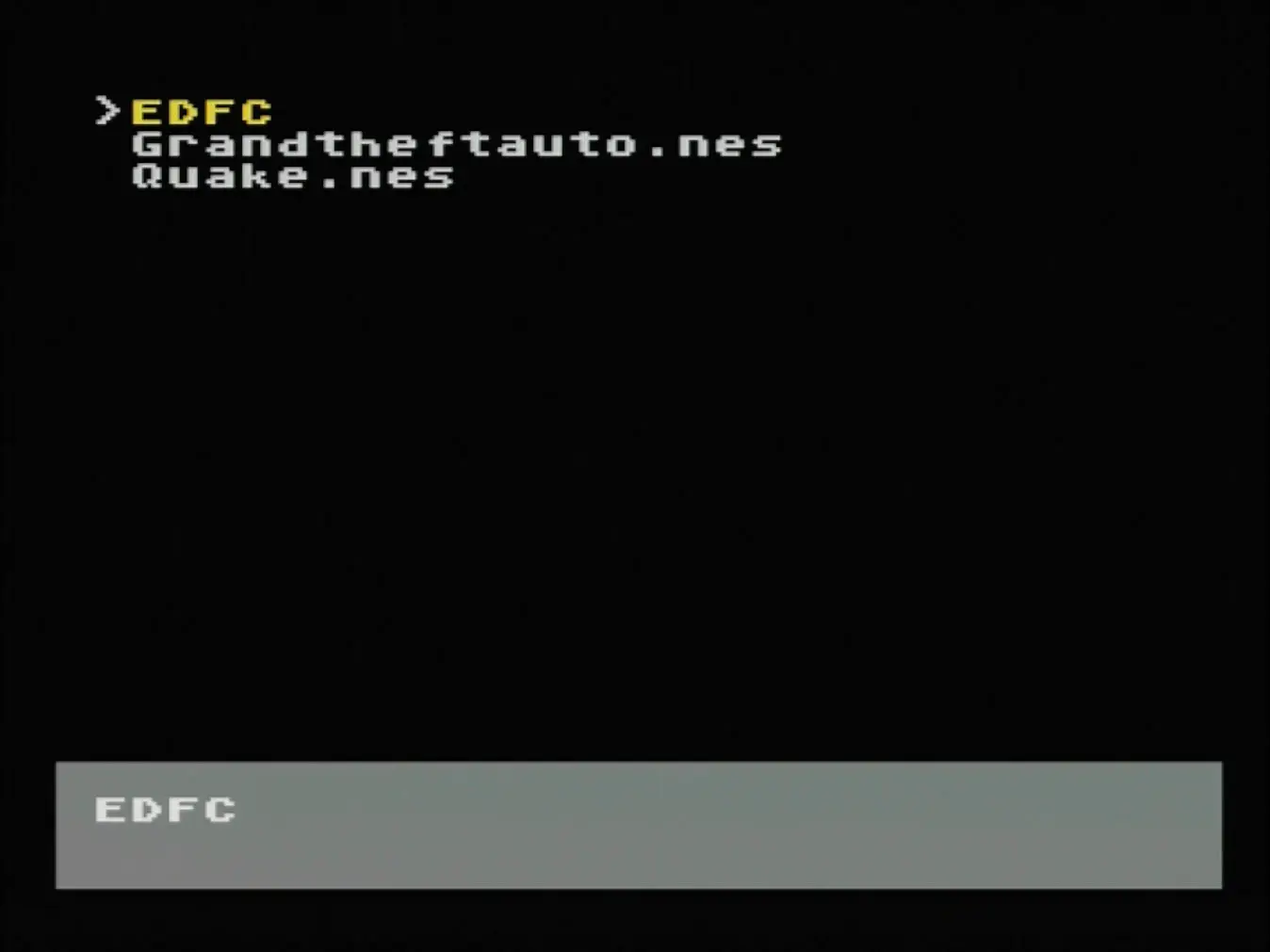
This menu handles folder navigation, launching games, and the basic flash cartridge settings.
A — open a folder or the file menu.
B — go back or close the current window.
Note: by default, A and B may feel swapped — B opens folders/files, while A goes back or closes a window. You can easily change this in the settings if you want the more familiar layout.
Select — open the main menu.
Start — launch the last launched game.
Left / Right — page scrolling: previous / next.
Launching a game
You can launch a game on the N8 Supergame Pro in two ways:
Press Start (it will launch the last played game, or the one you wrote to memory but didn’t start yet) and then press A.
A — opens the file menu for the selected ROM.
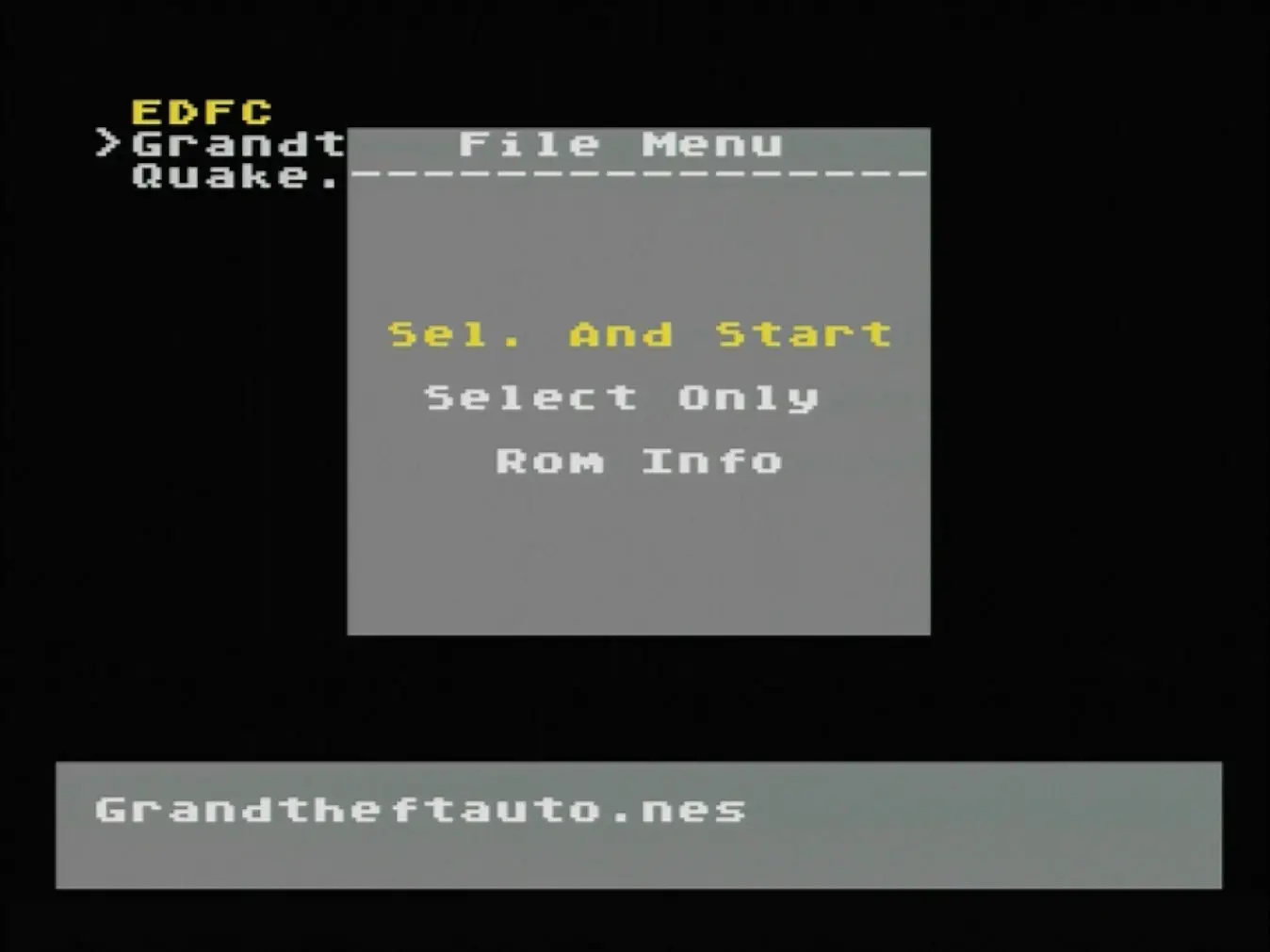
In that menu there are three options:
Sel. And Start — writes the game to memory and launches it immediately.
Select Only — writes the game to memory but doesn’t launch it. After that, pressing Start will launch this one.
Rom Info — shows detailed ROM info: size, mapper type, etc.
Main menu
If you press Select, the main menu opens:
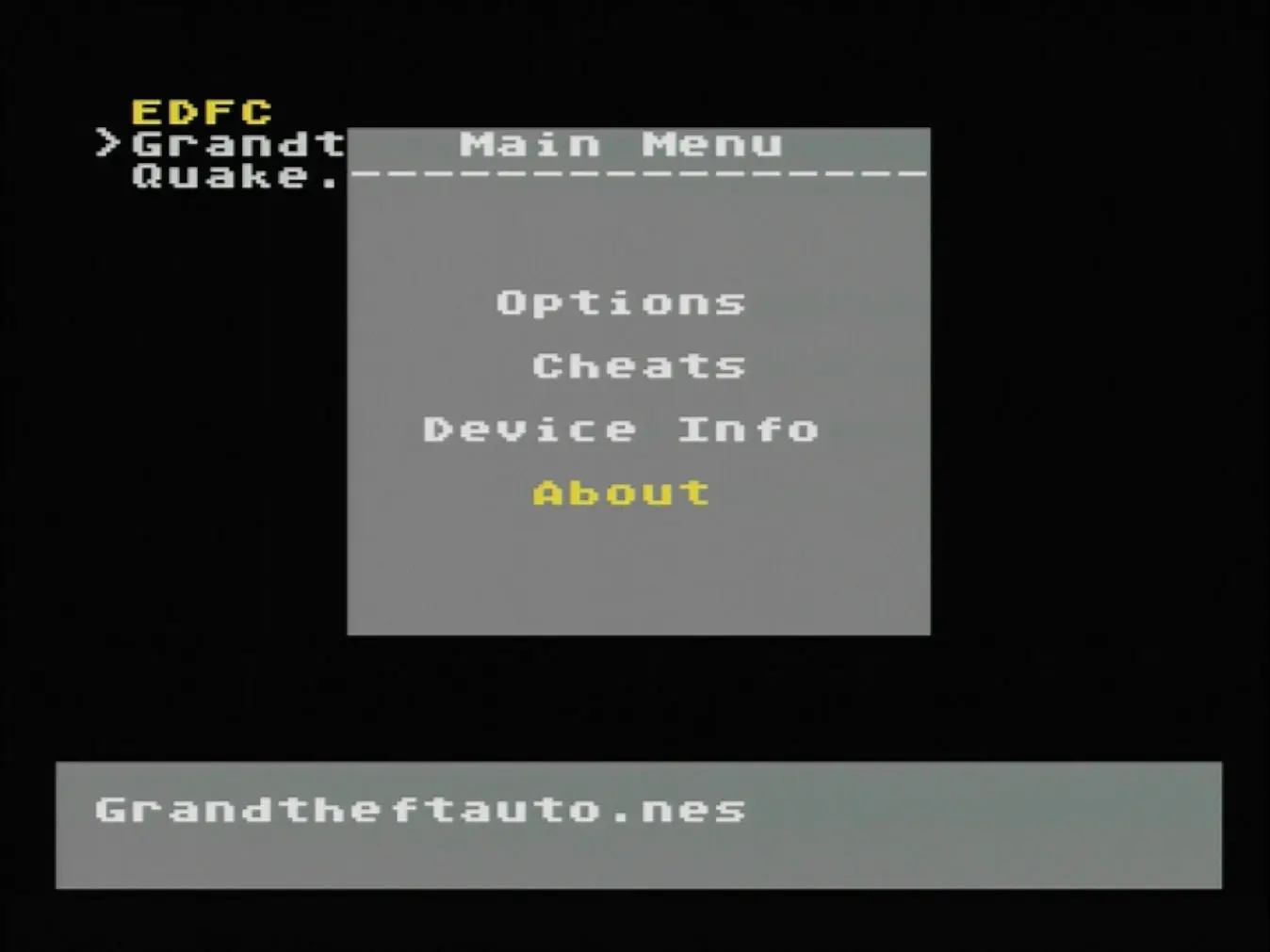
There are only four items here:
Options — cartridge settings. We’ll go through them later — there are a couple of important points.
Cheats — a menu for enabling cheat codes in the Game Genie format (the legendary pass-through adapter between the NES and a cartridge, letting you enter tricky combos for invincibility, infinite lives, and other joys).
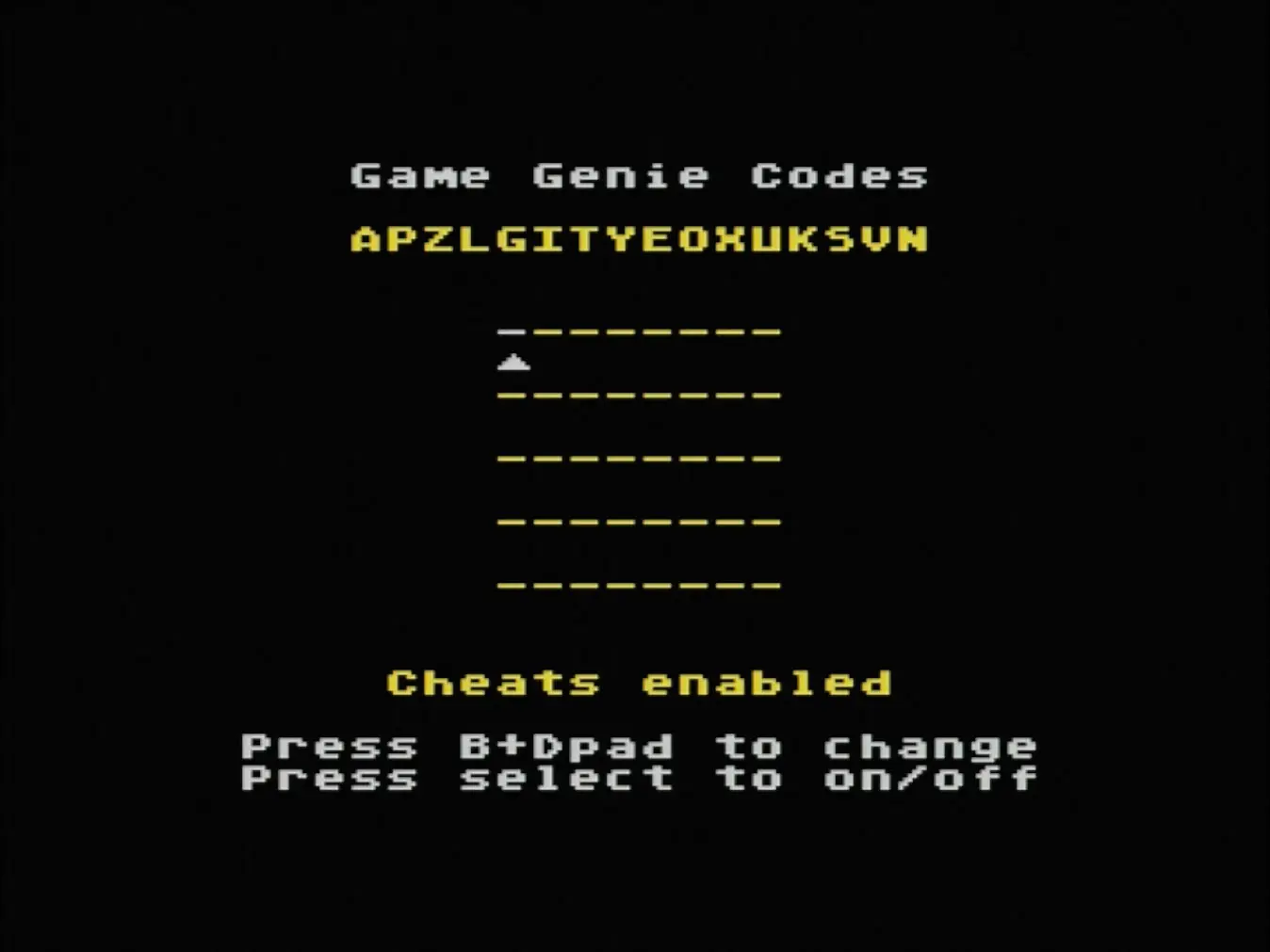
The input field supports codes up to eight characters long. To enter a character:
Hold A (or B if your buttons are swapped), then use Left / Right to pick the symbol.
Select simply turns cheats off/on.
Back to the main menu.
Device info
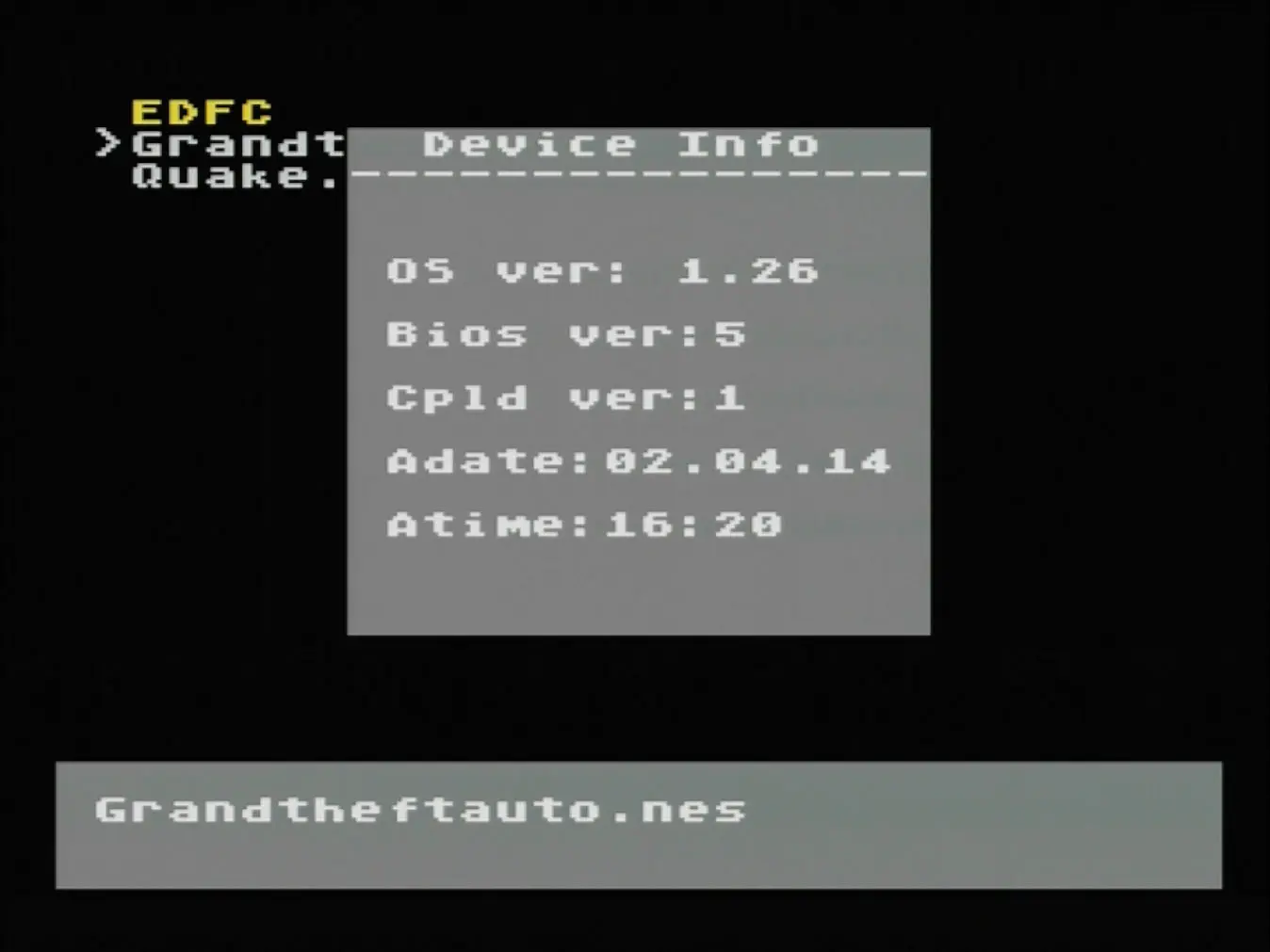
Technical info about the flash cartridge. Not super useful, considering this is a pirate flash cart — but at least you can see the firmware version.
About
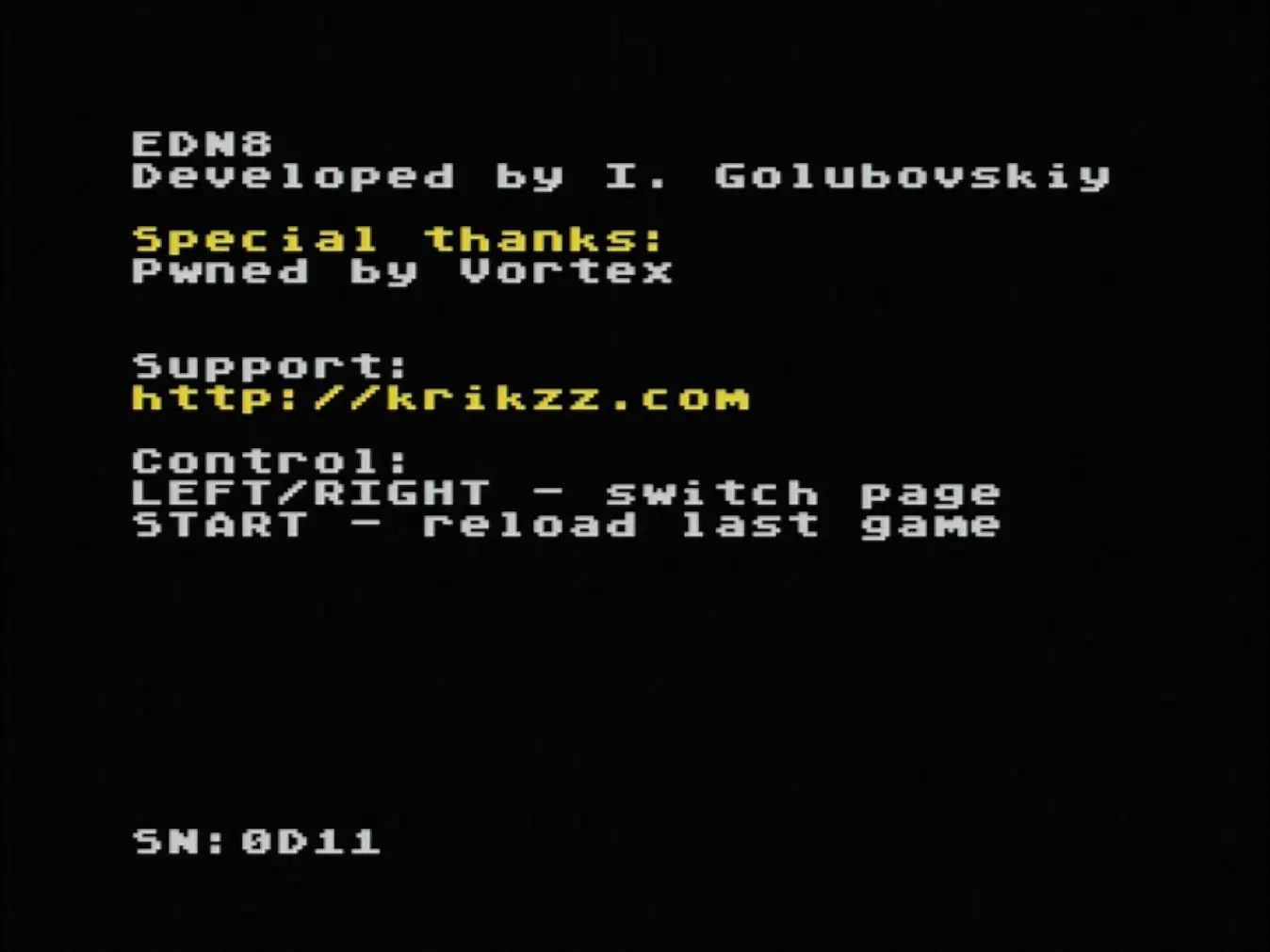
Credits menu. Funny that Vortex added himself here — since he’s the one who cracked Krikzz’s official firmware.
Now let’s move on to the settings.
Options
If you choose Options, you’ll see a settings menu:
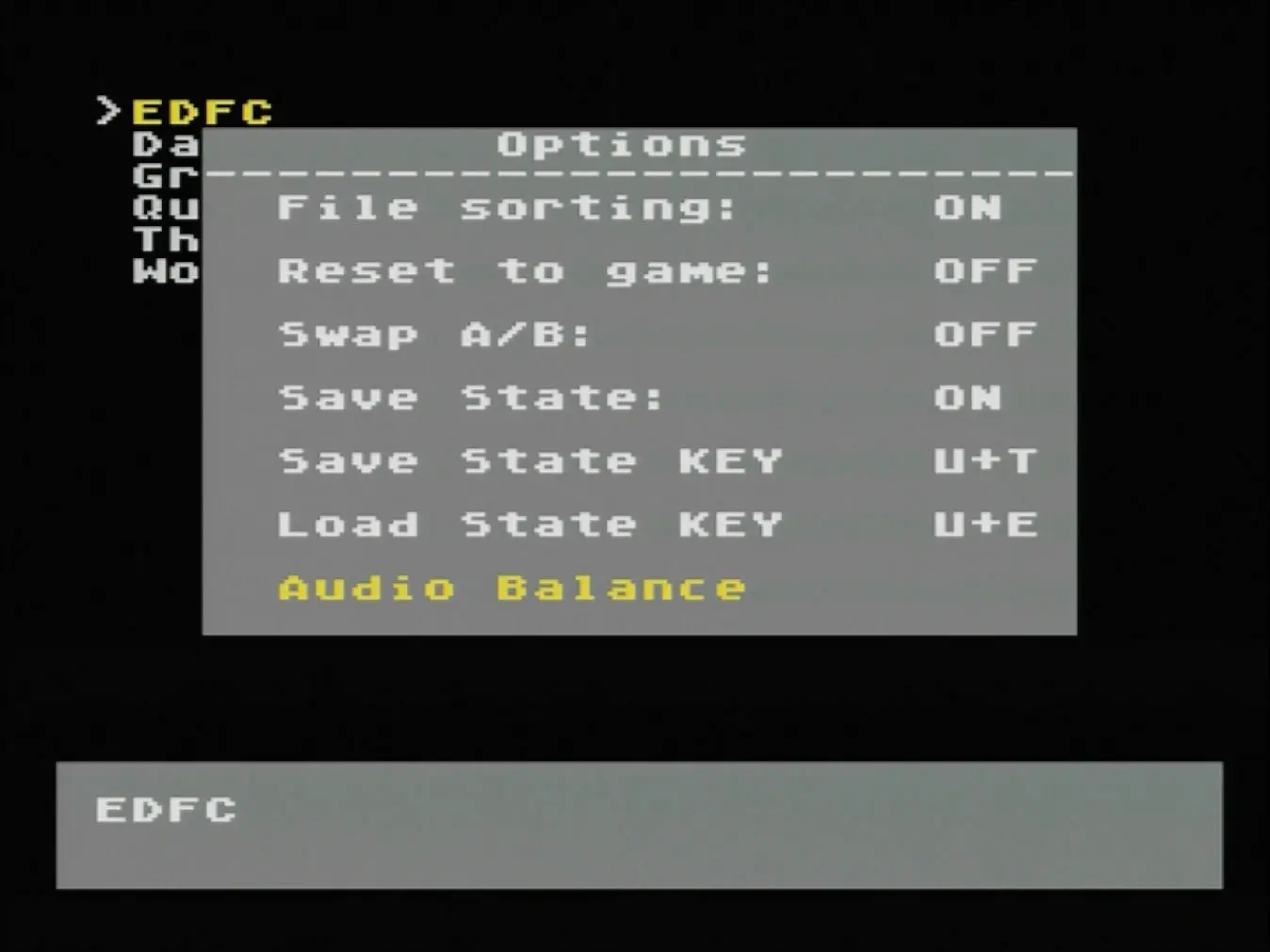
File sorting — sorts the game list alphabetically.
If enabled, games are shown from A to Z. If disabled, they appear in the order you copied them to the card.
Changes only take effect after rebooting the console.

Reset to game — changes what the console’s Reset button does: instead of restarting the current game, it takes you back to the flash cartridge menu.
Swap A/B — the option that swaps the functions of A and B.
Save state — enables/disables instant saves in games. It’s basically a patch applied to the game, so some titles can crash or freeze. If you run into that — try turning this option off.
Save State KEY — the button combo for making an instant save.
Mine is set to U + T, meaning Up + Start. Usually the first letter is used: D — down, L — left, R — right, A — A, B — B. But for Start and Select both start with S, so the second letter is used: T — Start, E — Select.
Load State KEY — the button combo for loading a save state.
Audio Balance
Audio Balance opens a submenu that lets you control the balance between the console’s built-in audio and the extra audio channels found in some Famicom cartridges.
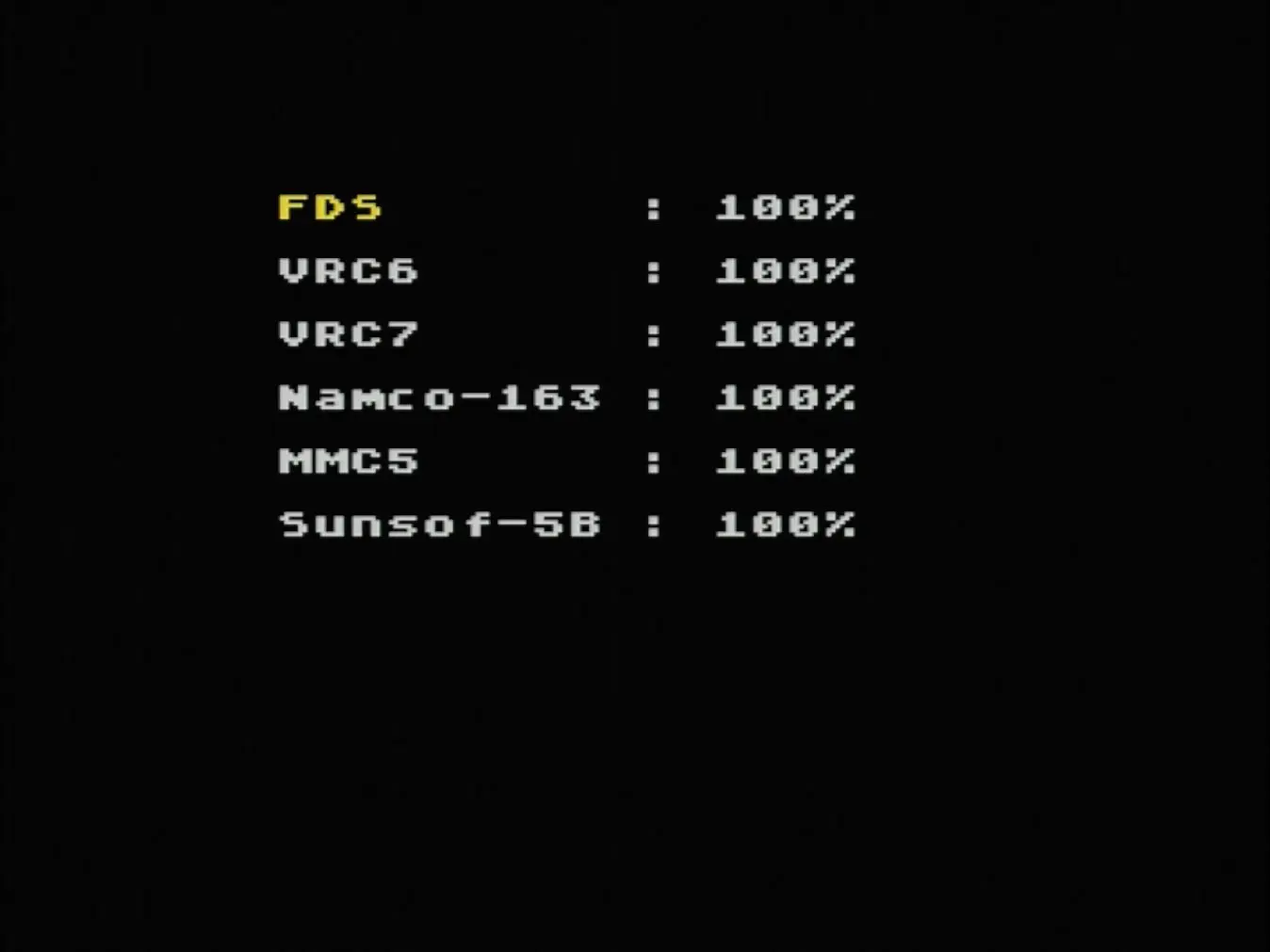
Quick side note. Some Famicom cartridges had special sound chips (for example VRC6, VRC7, MMC5, and others).
They add extra audio channels, and music in those games sounds much richer. Compare any regular game to, say, the Japanese version of Akumajou Densetsu — you’ll hear the difference immediately.
But there’s a downside: those expansion channels can overpower the console’s main audio.
In this submenu, you can adjust the volume of each channel to get the balance you like.